Get agent notifications on your iPhone
Since version 1.0.44, Vibe Island can forward approvals, questions, finished tasks, and warnings from every agent it watches to your iPhone. The transport is Bark, a free, open-source iOS notification app. You don't create an account, and nothing passes through our servers; your Mac posts directly to Bark's push service. Setup takes about two minutes. The steps below cover the mistakes we've seen users actually make, so if something refuses to work, the fix is probably here.
What you need
Vibe Island 1.0.44 or newer on the Mac, an iPhone, and the free Bark app from the App Store.
Before you start
This channel only notifies. Approving and answering still happen on the Mac. If you wear an Apple Watch, iOS mirrors the alerts there on its own.
Step 1: install Bark on your iPhone
Get Bark from the App Store, or expand Don't have the Bark app? in Vibe Island's setup sheet and scan the QR code with your iPhone camera.
Open Bark once after installing and allow notifications when iOS asks. If that prompt gets dismissed, the server will keep accepting pushes and your phone will keep ignoring them, with no error anywhere.
Step 2: copy your device key
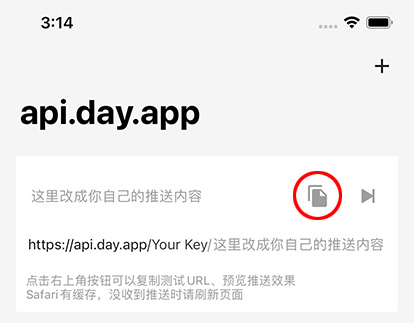
Most failed setups go wrong right here, so let's be precise. Bark's
home screen shows example URLs that look like
https://api.day.app/AbCdEfGh/.... The short code after
the domain is your device key, and it's the only
thing Vibe Island needs. Every example on that screen contains the
same code.
The classic mistake
Bark's settings screen shows a Device Token. That's an Apple push token, and pasting it is the single most common reason Send Test fails. If your test won't go through, check this before anything else.
Step 3: connect Vibe Island and send a test
Open the setup sheet
On the Mac, go to Settings, then Notifications, and turn on Notify my iPhone. The setup sheet opens on its own. Later you can reopen it from Configure… on the Connection row.
Paste the device key
Leave the server on Bark Public unless you run your own bark-server, and paste the key from Step 2 into the Device Key field.
Send Test, then Save
Click Send Test. The Mac should show Accepted by Bark. Check your device. and the phone should show a banner. Once you've seen both, click Save.
Good to know
Send Test skips the away check, so it arrives even while you're sitting at the Mac. Real events respect the check, which surprises almost everyone. Details below.
When your iPhone buzzes, and when it stays quiet
Only notify when I'm away from this Mac is on by default. Away means the screen is locked or off, or the Mac has been idle for about two minutes. So if you test the feature by working at your Mac and staring at your phone, nothing will come, and nothing is broken. While you're at the desk the notch already has your attention. The phone matters when you've left. If you'd rather get everything regardless, turn the toggle off.
Notify me about picks which events reach the phone: Approvals, Questions, Completed tasks, and Warnings, all enabled to start. One session occupies one notification, so a state change updates the banner in place instead of stacking a new one, and handled items are withdrawn where Bark supports it.
By default a notification names the agent and the project, nothing more. Include conversation details adds the conversation title and a short excerpt of the reply, question, or warning. Useful, with one catch: that text now passes through a push server. If you plan to turn it on, read the encryption section first.
Optional: encrypt the notification content
With encryption on, the title and body are encrypted on your Mac with AES-256-GCM before anything leaves. The push server relays ciphertext it cannot read. Setup happens on both devices:
On the Mac
In the setup sheet, turn on Encrypt notification content. Vibe Island generates a Key and an IV; grab them with Copy Key and Copy IV.
On the iPhone
In Bark, stay on the home tab and scroll down to Push Encryption. Open the encryption settings, choose AES256, GCM, and NoPadding, paste the Key and IV, and save.
Where everyone looks first
Push Encryption is on Bark's home tab, below the example URLs. It is not in the Settings tab. Half of our user group searched the settings first, so you'd be in good company.
Even with encryption on, the server still sees your device key and delivery metadata. And encryption has no effect on whether a push arrives; it only hides the text.
Troubleshooting
Send Test fails no matter what I paste
You probably grabbed the Device Token from Bark's settings screen. It looks more official than the key, and it is the wrong string. The key is the short segment in the URLs on Bark's home screen: in https://api.day.app/AbCdEfGh/... it's AbCdEfGh. Paste just that part and test again.
Send Test says accepted, but the phone shows nothing
Accepted means Bark's server took the message. Whether a banner appears is up to iOS. Open iOS Settings, then Notifications, then Bark, and check that Allow Notifications is on. Also, if you enabled encryption in Vibe Island but never finished the Bark side, the phone can't read what arrives. Finish that setup, or turn encryption off and test again.
I sit at my Mac and get nothing on the phone
Working as designed. 'Only notify when I'm away from this Mac' is on by default, and away means the screen is locked or off, or the Mac has been idle for about two minutes. Watching your phone while you work does not count as away. Turn the toggle off if you want every event pushed.
Can I approve or answer from the phone?
Not yet. The phone tells you something is waiting; you act on it at the Mac. Approving from a phone needs its own product to be done right, and we would rather build that properly than bolt it onto a notification channel.
Does it reach my Apple Watch?
Yes, through normal iOS notification mirroring. When the iPhone is locked, alerts go to a paired Watch. There is nothing to configure in Vibe Island, and the exact behavior belongs to Apple.
I enabled encryption and notifications stopped
Encryption never affects whether a push is sent, so something else changed. Usually it's the away-only default holding pushes back while you're at the Mac. If notifications arrive but look garbled, the Bark side doesn't match: it must be AES256, GCM, NoPadding, with the exact Key and IV copied from Vibe Island.
Can I use my own server?
Yes. Pick Self-hosted in the setup sheet and enter your bark-server's HTTPS address. Plain HTTP is rejected. Everything else works the same. Self-hosting plus encryption is the strictest privacy setup available.
One notch for every agent
iPhone push is a small part of Vibe Island. The main event is the notch itself, which watches every coding agent you run: Claude Code, Codex CLI, ZCode, Gemini CLI, Antigravity CLI, Cursor Agent, Trae, OpenCode, MiMoCode, Factory Droid, Devin, Qoder, QoderWork, Qwen, QwenWork, Grok Build, Kimi Code, DeepSeek, DeepSeek Harness (DSH), Mistral Vibe, Copilot, CodeBuddy, WorkBuddy, Kiro, Hermes, Amp, Pi Agent, Oh My Pi, and Gajae Code. Completions, approvals, and questions land in one panel, and one click returns you to the exact session. See how it handles several agents at once, or read the Mac notification guide.
Vibe Island · macOS 14+
Never miss an approval, at your Mac or away from it
Download Free Trial2-day free trial · all features included · no card required